Pages

Category

Techno (122) Gadget (84) Komputer (81) Smartphone (76) Internet (74) Tips dan Trik Komputer (64) Pernak pernik (57) Android (51) Facebook (25) Softwear (22) Computer Virus (20) Game (18) Antivirus (15) Job Application (15) Symbian (15) sex (15) Movie (14) Berita Unik (13) Kesehatan (11) Hardwear (4) BlackBerry (3) Gosip (2) Camfrog (1) Hukum (1) humor (1)

Saturday, July 30, 2011

Chimo NgeBlog : Motorola Triumph Review [Virgin Mobile]

Today I have a sleek Motorola phone you’ll want to check out. This is the Motorola Triumph and he learned most of his simple edges and design from the Droid X. In a way that is what we have here, a slimmed down, simplified yet nice version of the Droid X. This is the first Motorola Android phone carried by Virgin Mobile and it aims to be the best too. For a no contract phone this is a pretty solid buy for only $299 considering many phones of this level sold for $499 in recent months.

Not only does it come in at a great price, but it’s a Motorola phone running stock vanilla Android 2.2 Froyo with no custom user interface or overlay, no moto blur. This is completely stock Android as Google intended it to be. Pair that with a simple yet powerful phone and no contract, this sounds like the perfect phone for a lot of users. Before I get started here is our full hands-on and unboxing.

Hands-on video

Hardware

To quickly go over the hardware we have a 4.1″ 480×800 resolution display, a 5 MP camera with VGA for front video chat, and single LED flash. The Triumph does have HDMI-out as well and this is all powered by a 1 Ghz Qualcomm Snapdragon processor. It also has 512 MB memory as well as an included 2GB MicroSD card for storage. The overall design is something you’ll recognize right away if you’ve ever held a Motorola Droid or the Droid X as it features a very similar squared design as well as a extra soft touch coating on the back in matte black.

The Micro USB charging port and HDMI-out are nicely placed on the bottom of the device with the unlock/power button on the left edge of the phone versus the top. The power, volume rocker, and camera are all accented in an aluminum silver finish to make things look sharp. One big part of hardware I wanted to mention was what appears to be stereo speakers. The very bottom on each edge of the device is a decent sized speaker grill and sound comes out extremely loud and clear from both sides, the back cover doesn’t come off or I’d do a little inspection. I wish all phones had the loud volume this phone does. My Sensation sounds like a tin can in comparison.

Software & Performance

Like mentioned above the phone comes in running a completely stock, base version of Android 2.2 Froyo. Motorola added nothing to the user interface or widgets and this is completely how Google released it. I personally am a huge fan of vanilla android and would prefer not to use OEM UI overlays. Motorola’s Moto Blur software has been the least favorite for me so this was refreshing to see. As expected with basically very similar internals to something like the myTouch 4G performance is great. It runs smooth and seamless and I didn’t have any slowdowns ever.

Virgin did add some bloatware but much and i mean MUCH less than most carriers do. Pre-installed applications other than standard apps are airG Chat, Poynt for finding businesses and stores nearby, Where, and Virgin Mobile Live — that is it. I’ve seen devices come with upwards of 15 or more pre-installed apps so to only see a few is nice as we can install what we need when that time comes from the market. It did have Twidroyd and Facebook but those don’t count as bloatware because most people use social network apps right?

Also running a few benchmark apps the Motorola Triumph was right where I expected with Quadrant scoring around 1700 give or take. Comparing that with similar spec’d devices it sounds just about right as we have a 1 Ghz CPU here and it’s single core.

Overall I really enjoyed using the stock Android 2.2 on this device, I’ve been using HTC Sense lately and even though its nice I do enjoy the stock Android experience.

Camera & Battery Life


The Motorola Triumph comes in with a 5 MP single LED flash camera and although it does a pretty decent job I was a bit surprised with the quality. It didn’t seem to take as great of pictures as I was expecting but overall they are pretty decent. I took a few with medium room lighting and it manages ok. The camera also is 720p capable for video recording as well as the front facing VGA camera. Here are a few test photos with the Triumph camera.


The battery is only 1380 mAh compared to most phones having a 1520 or so battery so I was a bit concerned with battery life. The battery lasted through a full day of use with browsing, twitter, and the usual phone calls and texting but I did find myself reaching for my charger more than I have in the past. I’d say it gets close to a full days work with a single charge but you might want to have a charger in your car just to be safe.

Wrap-Up

To wrap things up I’ll start by saying for anyone using Virgin Mobile that have yet to try an Android device this would be the perfect device for you. It is simple, and clean, with a very sleek design as well as running completely stock Android. This is a great phone to introduce someone into a smartphone, or Android in general. With good build quality like Motorola is known for, higher end mid-range specs and a 4.1″ screen you can’t go wrong for $300 off contact.

This phone is a huge step for Virgin Mobile as it’s not just a pay as you go cheap feature phone you’ll use for a few months and forget about. Users wont pay for a few months and then stop using the service like with the average flip phone, this is a quality device someone can use for years to come with Virgin Mobile. It is available as of last week and can be yours for just $299. I highly recommend this phone to anyone considering moving to pay as you go, or that currently uses Virgin Mobile.


READ MORE - Chimo NgeBlog : Motorola Triumph Review [Virgin Mobile]

Chimo NgeBlog : Kumpulan Puisi tentang Insomnia


Berikut adalah kumpulan puisi-puisi yang berkaitan dengan Insomnia yang saya dapat dari berbagai sumber smoga bermanfaat untuk menemani insomnia anda, cekidooooottt......

Insomnia Mendekapku


demi malam gelap
hening sunyi senyap
berpandangan dengan rembulan
udara dingin tak tertahan

mataku belum terpejam
sekalipun aku ingin pergi
ke alam mimpi
tanpa dibatasi

sayup suara masuk telinga
semakin tak bisa pejamkan mata
padahal banyak yang harus kujalani
dalam hidupku sepanjang hari

hamparan bintang menemani
mungkin terheran aku terjaga
karena lainnya sudah tak ada
berkantuk lelap dalam lelahnya

aku rindu pada bidadari
yang kutemukan dalam mimpi
tapi aku masih saja
terjaga tanpa jeda

bila waktu tidurku berkurang
beruntungkah hidupku
karena berarti aku hidup lebih lama
daripada yang terlelap

malam pun akan habis
masih saja tak bisa tidur
waktuku pun tetap habis
sekalipun aku tertidur

masih saja terjaga
memandang bulan bercahaya
padahal aku ingin pergi
ke alam mimpi tanpa dibatasi


Oh Insomnia

ingin aku hidup dalam mimpi
yang kurajut semalam tadi

mimpi...
yang kudapatkan setelah susah payah terlelap

rupanya aku lupa cara memejamkan mata
dan meninggalkan semua
mataku masih rindu melihat nyata,
melihat malam digoda kunang-kunang

argh...
untuk tertidur saja aku perlu ribuan detik
juga puluhan kali ucapkan doa
pantas aku langsung terjerat insomnia

perlu pengorbanan untuk mendapatkan satu mimpi

ya, insomnia membuatku mengerti...


Insomniaku


Buat apa kau beri aku sepotong malam,
aku tak bisa menikmatinya.

Sampai beribu malam lesu berdebu
dimakan rayap,
mataku tetap tegap.

Hikayat malam adalah sebuah tidur
mungkin juga mendengkur.

Aku mulai gagal menerjemahkan
malam dalam tubuhku,
semenjak pengusaha
bernama insomnia
membeli daerah jelajahku.

Dengan senyum waspada,
ia menjarah amis darahku sampai tawar.

Sudahlah, simpan saja sepotong malam,
lagian aku sering gagal menerjemahkannya dalam tubuhku


INSOMNIA SAHABATKU

Terkurung lagi dalam sepi ini, seharusnya aku tak begini..
Terlambat mimpi menghampiri, tersesal namun tak mengerti..
Apakah ini..?
Aku tak bermimpi..!

Mata amat sulit terpejam, begitu tubuh tak melawan diam..
Hingga malam larut menjelang, pagi pun tak lama datang..
Lelahkan hati..?
Gerak tak henti..!
Ku tahu ini tak normal, atau hanya derita informal..
Hapuskan lelah itu, kau mengusir tidurku..
Insomnia.. Insomnia.. Itukah nama mu..?
Insomnia.. Insomnia.. Kaulah sahabatku..!


Elegi Insomnia

kalau kau menyempatkan diri, tengok langit
bintang Norman sedang memanjat timur
simak lesat segala zat di jam hening ini
kenangan lagu India bergeleng memanggil kenangan
dinding-dinding terjebak. macet
harus menikung di jalan tikus

mulailah hitung domba-domba archimedes
bersama paduan suara pasir alam semesta
gemerincing cinta. myriad myriad
rumah masa depan tak bisa lebih berhantu lagi
anak akan tetap lahir, mengabaikan engganmu
lalu mereka yang belajar jarak tidur


Insomnia di ujung pagi

aku tergugah sejenak...membuka jendela... melihat gelap malam.aku terdiam...saat akalku mulai bergejolak berlarian..saat tanya menyambangi tiap misteri yang ada...aku takjub..saat perlahan awan tersingkap..menyeruakkan wajah bulan yg tersipu malu..berjalan mengitariku.. bergandengan dengan bintang dan angin malam..tak lelah mereka bercahaya... tak lelah mereka mnemani Dewi Malam yg sunyi dan diam..angin berdesir pelan..menelisik di tiap sudut kalbu manusia...membawa kesendirian dan kesepian..


Insomnia hitam

beredar disekelilingnya, pemikiran pemikiran yang terus berotasi di neuron neuron otaknya. tampak mengganggu, tapi entah mengapa dia menikmatinya. seolah olah gangguan aneh ini adalah makanannya sehari hari. kedatangannya tak perlu diprediksi. saat matahari tepat bersembunyi pada belahan bumi yang paling jauh. itulah waktunya. tawa jahat para pendosa menggema. menguasai benaknya.


Ketika insomnia

ingin aku hidup dalam mimpi
yang kurajut semalam tadi

mimpi...
yang kudapatkan setelah susah payah terlelap

rupanya aku lupa cara memejamkan mata
dan meninggalkan semua
mataku masih rindu melihat nyata,
melihat malam digoda kunang-kunang

argh...
untuk tertidur saja aku perlu ribuan detik
juga puluhan kali ucapkan doa
pantas aku langsung terjerat insomnia

perlu pengorbanan untuk mendapatkan satu mimpi

ya, insomnia membuatku mengerti...


READ MORE - Chimo NgeBlog : Kumpulan Puisi tentang Insomnia

Friday, July 29, 2011

Chimo NgeBlog : Motorola DROID 3 review


Motorola has been on a roll. With the introduction of the original DROID handset, a phone that we exclusively showed the world, Motorola has been set on a path of success with Android. The first Motorola DROID was innovative and brought forth a brand new version of Android, Android 2.0. The device featured a high resolution display with full QWERTY slide-out keyboard, and ran on Verizon Wireless’ solid voice and data network. Motorola and Verizon followed it up with an evolutionary upgrade in the DROID 2, but the Motorola DROID 3 is supposed to be the next big step in both hardware and software. I have been using a Motorola DROID 3 for over a week now, and my full review is after the break.


Hardware / Design

The Motorola DROID 3 is taller and wider than the original Motorola DROID from over two years ago, though it’s also a hair thinner. This is due in part to the 4-inch display that replaces the 3.7-inch LCD found on the first DROID and DROID 2. Still, the bezel surrounding the qHD screen seems abnormally large and makes the entire handset footprint very big.

The DROID 3′s build materials are top notch though, complete with a metal bezel around the screen, a soft-touch rubberized finish and high-quality glossy plastic on the back. On top of the device you’ll find a power on/off/lock button in the center along with a 3.5mm headset jack towards the right. The power button itself is recessed and unusually difficult to press, I should add. On the right side there’s a volume up/down rocker, and on the left side there is a mini-HDMI port and a microUSB port. Around back there is an 8-megapixel camera with a dual-LED flash, and it’s capable of 1080p HD video capture.

The device itself feels reasonably solid, though it really is heavy. Combined with such a large footprint, the Motorola DROID 3 doesn’t feel like a phone that should be replacing the original DROID, even if the internals say otherwise. It’s really big, and seemingly without reason. Phones should be getting thinner and slimmer, not thicker and wider, especially when they’re replacing such an innovating handset like the original Motorola DROID. In my opinion, Motorola’s inclusion of a 4-inch display forced the company to take a step back hardware-wise, instead of leaping forward. This was a trade off that wasn’t worth making.

The display on the Motorola DROID 3 is a PenTile display, used in the company’s other dual-core handsets like the Motorola ATRIX 4G. This display, while using less power over superior qHD displays, looks incredibly pixelated, and cheap. Text is blurry at times, especially combined with Motorola’s custom UI when scrolling between app panes, for instance.

Keyboard

The full QWERTY keyboard has been a staple with all Motorola DROID devices, and the DROID 3′s doesn’t disappoint. It’s easily the best keyboard of the pack, and the best overall on any Verizon Android handset I’ve used. Keys have definition and the keyboard is spacious, complete with a dedicated number row at the top. The buttons also have a perfect tactile feel when pressed, and the backlighting looks very good in low-light conditions. The layout of the keys is even a major win, as most manufacturers constantly muck up key layouts; the keys are placed properly here.

Motorola also included directional arrow keys, which are great to have on the physical keyboard. Oddly enough though, the accent symbols on the keyboard include very rarely used symbols (for most of the U.S. population) like a yen symbol, { } symbols, and comically, even an elipsis.

Software

The DROID 3 runs Android 2.3 Gingerbread, but with Motorola’s customizations you’d pretty much never know it. Google’s fastest Android OS stutters on the DROID 3, and it also faces random slowdowns. Motorola’s UI clearly appears to be the cause. Cheesy animations and effects like 3D scrolling, darkening and lightening of widgets and screen sliding make the device actually feel slower than it is and it’s pretty mind boggling to think that Motorola thinks cheap effects were worth the sacrificed performance in order to try and differentiate their device. The DROID 3 packs a dual-core 1GHz processor, but you definitely wouldn’t know it.

Little things software-wise annoy me. For starters, the ability to touch and hold an app and have the phone let you immediately drop it on the home screen was a nice shortcut in Android. Motorola has replaced that with the following functionality: touch and hold an app, and be prompted to add the icon to the home screen, or add it to a group. It’s not a huge deal, but it’s an unnecessary addition to something that worked very well to start. Similarly, most of Motorola’s customizations aren’t enhancing Android, they’re making it worse. And for an OS that already doesn’t offer the ease of use and fluidity of a platform like iOS or webOS, Motorola shouldn’t be making UI changes just for the sake of making UI changes. Instead, the company should be trying to make the platform better and lighter, but it is adding rather than subtracting.

Running Qualcomm Labs’ Vellamo benchmarking tool, the Motorola DROID 3 performed reasonably well as far as raw tests are concerned, though coming in below the HTC Sensation and HTC EVO 3D, and even other older devices like the HTC myTouch 4G and HTC Desire S. This obviously shows the large role that both hardware and software configurations play with a device’s speed, but it’s interesting that Motorola’s flagship handset is slower than HTC’s non-flagship handsets, even with the heavy UI customization that HTC uses with Sense.

Phone / Battery

Talking on the Motorola DROID 3 is one of the worst voice experiences I have had in recent memory. In fact, I can’t actually believe that a network with as high standards as Verizon Wireless would release a device this bad as far as the phone function is concerned. Calls are often choppy and distorted, they cut in and out, and callers on the other end sound incredibly tinny. Volume isn’t that great either, and I’ve had to keep the volume all the way up at all times during testing.

The speakerphone suffers from most of the same issues, with choppy audio, thin sound quality and poor projection.

As far as the battery is concerned, battery life on the DROID 3 is reasonably good. With moderate use, the battery lasts through a day with ease, and you could even probably squeeze out two days if needed. This included some basic web browsing, music playback, and light app usage. As soon as I started playing video, or recording video, or even taking photos, battery life became noticeably diminished. Again, with moderate usage, you should be able to power through a day even with push Gmail and an Exchange server set up, though nightly recharges will be mandatory.

212 phone number provided by 212areacode.com

Conclusion

The Motorola DROID 3 was rushed and I’m betting pushed to the side in favor of the upcoming Motorola DROID Bionic. There is no other explanation. The fact that Motorola and Verizon could release the third major iteration of the original Motorola DROID and have most of the handset’s usability features not live up to the first is disappointing, especially because the phone is more than competitive in terms of raw specs.

Motorola pretty much missed the boat with the DROID 3. While it adds necessary features like a dual-core CPU, global roaming, and a qHD display, the sum of these parts surely doesn’t equal an enjoyable product in every day usage, even if they do on paper. Phone calling is borderline atrocious. The device is just too big and heavy, doesn’t feature a solid UI, and isn’t unique enough to offer a compelling reason to buy one over another Android handset on Verizon, especially not with the Motorola DROID Bionic on the way. Unfortunately, this likely isn’t the DROID you’re looking for.


Tags: , , , , , , , , , ,

READ MORE - Chimo NgeBlog : Motorola DROID 3 review

Chimo NgeBlog : Best Windows Phone 7 apps

Browse the best Windows Phone apps for your HTC HD7, LG Quantum, Samsung Focus and more, from basics like weather apps and task managers to the ultimate IM client and Foursquare app.

Windows Phone 7 is not yet a major player in the smartphone space, but we think it will be soon. With the release of Mango (version 7.5), the OS is finally beginning to mature. A few weeks back, Microsoft revealed that the platform now has 25,000 apps, so we decided to take a little tour and find some of the best apps in the Windows Phone Marketplace. These apps represent the best we’ve seen so far, but this list will be periodically expanded and updated. If you have suggestions or want to share an app you love, please let us know in the comments below! We’ve only begun to dig into the store, so we’re sure there are plenty of other apps we haven’t yet tried out.

Be sure to check out our many other guides to the best iPhone apps, iPad apps, Android apps, Android games, iPhone games, and Android tablets.

4th-and-mayor-windows-phone-7-icon4th and Mayor (Free)

It may have an odd name, but 4th and Mayor is an awesome Foursquare client, outdoing even Foursquare’s own official app. You can check in, add photos to places, and access a fun leaderboard. We really like the Windows Phone “Metro” look of the app and how easy it is to browse nearby locations and add pictures. If you’re a regular Foursquare user, this may get you hooked. You can’t find 4th and Mayor anywhere but in the Windows Phone Marketplace.

4th-and-Mayor-windows-phone-7

netflix-icon-windows-phone-7Netflix (Free, Netflix subscription required)

It’s still difficult to get Netflix on an Android phone, but the WP7 version works great across all devices. The setup process doesn’t even require you to use a confirmation code, as you usually have to do when setting up external devices on Netflix. Just log in with your email and password and you’re good to go. We found the interface to be fully featured and well-designed compared to other Netflix apps for devices like the Xbox and Wii. You can search up anything available on Netflix Instant Streaming, browse movies and shows by genre, add or remove programs from your Instant Queue, rate shows — the whole shebang. On a Wi-Fi connection, our video quality was extremely high for a mobile device too, and Netflix does a good job of detecting your connection speed and appropriately picking the right quality of video so it won’t skip and looks as good as it can.

netflix-windows-phone-7-app

gmaps-iconGmaps (Free)

Gmaps is a great Google Maps application made by a developer named Alexey Strakh. We wish it had directions, but it does let you look any location up in Google Maps and view it in a number of ways including traffic (though Google has canceled this service, supposedly), satellite, and a very cool Water view that turns everything black except for water, which is highlighted in bright blue. If you need a Google fix, these are your apps. We hope Google will develop a Google+ app for Windows Phone soon as well.

Gmaps-windows-phone-7

Cocktail-Flow-iconCocktail Flow ($2.99)

There have been a lot of bartending apps over the years, but few have been worthwhile. It’s not hard to make a list of cocktails and mixed drinks, but that’s just not compelling. Cocktail Flow takes it to a new level. Using a beautiful graphical interface, you physically click on all the different liquors, juices, and drinks you have at home. Then, using the power of algorithms, the app shows you some possible mix drinks you can make right now. The app also suggests what ingredients you might want to buy to open up new cocktail possibilities as well and lets you mark drinks that are your favorites. Some basics on glassware, garnishes, and other tricks are also included. Cocktail Flow is one of the first bartending apps to truly grab our attention. Check it out.

Cocktail-Flow-windows-phone-7-app

Allrecipes-Dinner-Spinner-iconAllrecipes.com Dinner Spinner (Free)

Cooking comes natural to some, but not everyone. If you’re like us, it’s hard enough to figure out what kind of food you want to eat, but to then try and find a recipe…well, it’s just a lot of work. The Allrecipes.com Dinner Spinner is like Urbanspoon for eating in. Using a slot machine-like selector, it lets you choose what type of meal you want to eat (salad, drink, dessert, soup, etc), how long you have to make it (20 minutes, over an hour, etc.), and what the central ingredient should be (lamb, pasta, fruit, etc). Enter that and it will parse its 40,000+ recipe database and suggest a whole bunch of recipes, ranked by popularity and relevance. Pick a recipe and you can read reviews of it and check out nutrition facts.

Allrecipes-Dinner-Spinner-windows-phone-7-app

im-plus-windows-phone-7-iconIM+ (Free)

There are more chat services than ever before, but they’re still as walled off as ever. IM+ is an app that attempts to combine all of your different chat accounts into one big list of contacts, and it works better than a lot of desktop chat programs. Part of its appeal is how many chat clients it supports: Facebook, Windows Live Messenger, Yahoo, Google Talk, Skype, AIM, ICQ, MySpace, and Jabber. Logging into all the accounts takes a bit of time, but IM+ makes it a much faster process than it should be, allowing you to zip through logins and find out which ones failed after your done. Contacts are clearly marked with a little icon to indicate the service they’re on and you can turn any one of the chat clients on or off whenever you like. Lately, we’ve been wishing that Windows had a chat aggregator this nice.

IM-plus-windows-phone-7-app

MyThings-windows-phone-7-iconMyThings ($2.99, lite version is free)

If you’re a list maker, MyThings is an app you’ll need. It lets you create task lists with due dates, levels of importance, and notifies you when they’re about due. It’s simple, but effective, and quite welcome as WP7 does not come with a good task manager. It could still use a couple features, like recurring tasks and Live Tile notifications, but we expect these enhancements will come in time.

mythings-windows-phone-7-app

amazon-kindle-windows-phone-7-iconKindle (Free)

Amazon’s Kindle service has a lot of competition from the likes of Google eBooks and the Barnes & Noble Nook, but nobody is on as many platforms as Amazon. Taking a Netflix approach, Amazon is hard to pass up simply because it’s available in so many places. The Kindle library has quite a few free books and roughly a million different books, newspapers, and magazines to check out. Anything you buy in the Windows Phone app will become available on any other device with a Kindle app and on the Web, meaning you can continue reading from almost anywhere. Thanks to Amazon’s Whispersync, it even saves your page in the book. Very cool. We’re hoping that Windows Phone gets more e-book apps and an Audible.com app soon.

kindle-windows-phone-7-app

weather-channel-iconThe Weather Channel (Free)

Yeah, it’s only a weather app, but you’re going to want a weather app. The cool thing about The Weather Channel is how clean its design is, showing all the info you might need to know in a nicer fashion than other apps like Weather Bug. It also has a live radar feed that shows incoming precipitation and live cams set up throughout many cities. Our favorite part is the Live Tile, which shows you some basic weather info right from the Windows Phone home screen. Very cool.

weather-channel-windows-phone-7

Apict-iconApict: Instant Camera ($0.99)

Apict is not a productivity app, but it will make you remember why Polaroid pictures were so fun. The app lets you take a picture, crop that picture however you like, and then add a caption. Finish with that and it will virtually print out a Polaroid-like version of your picture, complete with aging, crappy Sharpie handwriting, and a big white border. It works on existing photos too. That’s about it. It has one function and does it well. If you’d like to retro-ify your digital picture collection, this is the app for you.

Apict-windows-phone-7


READ MORE - Chimo NgeBlog : Best Windows Phone 7 apps

Thursday, July 28, 2011

Chimo NgeBlog : 40 Google+ Tips and Tricks for Power Users


Google+ is all the rage right now. Even under its limited-invite "field trial" phase, the social sharing service is growing in leaps and bounds, with oodles of new users joining every day and even more champing at the bit to get in.

Most of us, however, are only beginning to scratch the surface of what Google+ can do; like many Google products, G+ is brimming with advanced features and untapped tweaks. That's why I decided to put together this massive list of Google+ tips and tricks. It includes some of the best power-user pointers I've found both from my own experimentation and from following some really smart folks in the Google+ universe.

For more G+ tips and general tech talk, be sure to join me on Google+ as well. I promise I won't bite -- at least, not unless you ask really nicely.

Google+ Tips Part 1: The Stream

1. Use hotkeys to get around Google+ faster. In your Stream, press "j" or "k" to move through posts, and press Enter to start a comment. (Pressing Tab and then Enter will cause your comment to be submitted; hitting Tab twice and then Enter will cause it to be cancelled.) You can also press "q" to jump to the Google+ chat box.

2. Hotkeys work in the notification drop-down, too: Press "j" or "k" to move up or down in the list, and then press Enter to open any individual notification. When viewing a notification, "j" or "k" will let you progress forward or backward to other items. Pressing "Esc" will close the notification window altogether.

3. Want more hotkeys? Check out the G+ Extended extension for the Chrome Web browser. It adds a series of additional options, including hotkeys for +1'ing posts, sharing posts, and expanding comments.

40 Google+ Tips and Tricks for Power Users4. If comments are getting out of control in your Stream, try the +Comment Chrome extension. It collapses all comment threads so you see them only when you click to expand. Another good option is the G+me Google+ extension; it leaves comments expanded by default but gives you a one-click option to collapse any thread or post on demand. It also provides badge-style comment counters to help you keep tabs on new activity for items you've collapsed.

5. You can take a specific item entirely out of your Stream by clicking the small drop-down arrow next to it, then selecting "Mute this post." That'll also keep you from receiving any future notifications about the item.

6. On your own posts, that same drop-down arrow holds options to shut down comments and prevent people from resharing. The commands affect only the specific item you're viewing.

7. Sometimes leaving a comment on an active post can turn into a bouncing-screen challenge, thanks to the top-of-page activity always pressing your Stream downward. To solve this, click the drop-down arrow next to the post you're viewing and select "Link to this post." That'll open the post in a new tab; type your comment there, then close the tab when you're finished.

8. Google+ lets you stylize text within posts and comments. To italicize, sandwich your text with underscores _like this_; to make text bold, use asterisks *like this*; and to create a strikethrough effect, use dashes -like this-.

9. Make Google+ a little easier on the eyes with the Google+ Ultimate extension for Chrome. It separates posts into individual boxes with an offset background and forces the top status bar and left sidebar to stay in fixed positions while you scroll. Another good option is the similar Usability Boost extension; it gives a slightly different modified look to the site that some users may prefer.

10. Mention (or "tag") someone in a post or comment by typing "+" or "@" and then the person's name. Google+ is still a bit wonky at times about bringing up the right result; try typing the name slowly and enclosing it in quotation marks (e.g. +"Bob Sacamano") if you have trouble.

11. Improve the G+ reply mechanism immensely by grabbing the Replies and More Google+ Chrome extension. The extension puts links throughout G+ that let you reply to the author of any post or comment with a single click -- and without all the "+"-typing hassle.

12. To start a private conversation with a friend or multiple friends, just share an update like you normally would -- but be sure to remove "Public" and any other circles from the share box. Then, tag your friend or friends using the "+" syntax mentioned above. They'll receive notifications about the message, and you'll be able to have an ongoing dialogue in the comments for the post. If you want to be extra safe, you could also disable resharing using the process described in tip #6.

13. Power up your Google+ Stream with the +Photo Zoom Chrome extension. With it installed, you can hover your mouse over any photo in your Stream to see an enlarged version of the image right there.

14. The Google+ mobile app allows you to view posts from people in your geographic area (using the section labeled "nearby"). Little-known fact: You can access that function from your desktop, too; just load the mobile version of Google+ to do it.

15. The Google+ mobile app has a hidden feature of its own: When viewing your Stream, press the menu key and select "Manage Views." Then, check off all your favorite circles and select "Done." You'll now be able to swipe right from the main Stream to view those circles individually.

Google+ Tips Part 2: Circles

16. Use Google+ to save posts and other important content. Go to your Circles page and search for your own name. Add yourself to a new circle called ".Save" (or something to that effect). Then, anytime you see something in your Google+ Stream that you want to save, just share it with your .Save circle. You can browse through your saved stuff by opening your .Save stream (it'll be at the top of the "Stream" list on the left-hand side of your Google+ home page). No one other than you will be able to see it.

17. If you use a note-taking service like Evernote, you can save content directly from Google+ into your off-site notepad. First, find your account-specific Evernote email address. Add that address into a new Google+ circle called "Evernote" -- then, anytime you want to save something from Google+ to Evernote, just share it with that circle. Google+ will send the content in an email, and Evernote will translate it into a notebook item in your account.

18. Want certain circles to show up higher than others in the main Stream list? Circles whose names begin with a period (like ".Save") will always shoot up to the top. Names starting with an asterisk (like "*Important") will appear next.

19. The default Google+ circles will always appear above everything else. To get around this, create your own new circles to replace the default ones (e.g. "My Acquaintances" to replace "Acquaintances," and so on). Be sure to move everyone from the default circle to your new replacement one, then delete the default circle when you're done.

20. When moving people into circles on your Google+ Circles page, hold down Ctrl or Shift to select more than one person at a time. You can also click and drag to draw a box and select multiple people to move.

21. To copy one entire circle into another circle, click on the first circle and select "View circle in tab." Then select "More actions" and "Select all." Now, just drag the entire group down into the other circle and -- voilà! -- the deed is done.

22. Change the layout of the Circles page by clicking and dragging the divider line up or down between circles and people. This allows you to create more space on either side of the line.

23. If you want to look at a lot of people at once on the Circles page, try pressing Ctrl and "-" a few times to zoom your browser out and make the content smaller. You can always press Ctrl and "0" to return to the normal view.

24. From the Circles page, double-click on any person to jump right to his or her profile.

25. Try this: On the Circles page, hover your mouse over a circle that has at least 30 people in it, then scroll with your mouse's scroll wheel. The faces in the circle will rotate around like a carousel, giving you a nice graphical way to see who's inside.

Google+ Tips Part 3: People and Profiles

26. Find new people by searching for topics or locations in the search box at the top of the Google+ page. You'll get back a list of people who have your keyword somewhere in their profile.

27. Search Google+ from Google by putting "site:plus.google.com" at the end of your query. To search only through posts you've written or shared, use "site:plus.google.com/[your Google ID]" -- replacing "[your Google ID]," of course, with your own unique Google ID (the long number that appears in the URL when you click on your profile).

40 Google+ Tips and Tricks for Power Users28. If you want to get really fancy, you can create special commands for searching Google+ within Chrome. Go into the "Manage search engines section" of your browser's settings and add a new entry called "Google+ Posts." Set the keyword as "post" and the URL as "{google:baseURL}search?q=site:plus.google.com inurl:posts/* %s." Add another new entry called "Google+ Profiles." Set its keyword as "profile" and its URL as "{google:baseURL}search?q=%s&tbs=prfl:e." Then, when you want to search through Google+ posts, just type "posts" followed by your query into the browser's location bar. To search Google+ profiles, type "profiles" followed by your keyword.

29. Jazz up your Google+ profile with a row of photos along the top of the page. Click the "Edit Profile" button on your profile page and then click on the large blank space beneath your name and short bio. There's plenty of room for creativity; check out this story at Mashable for some supercool examples.

30. You can edit photos right within Google+. Open any image from the "Photos" tab of your profile, then click the drop-down box labeled "Actions" and select "Edit photo." There, you'll find a variety of options for color and contrast correction as well as special effects.

31. All of your Google+ photos are actually stored in Picasa. You can see and share them from Google's Picasa Web Albums site.

32. Google+ makes it easy to see how your profile looks to other people. Just go to the "Profile and privacy" section of the Google+ settings and type any user's name into the box labeled "See how your profile appears to other users." Click "Preview," and you'll get a glimpse at yourself through someone else's eyes.

33. Get a permanent link to any Google+ post by clicking on its timestamp. If the post was shared publicly, this link will work for anyone -- even if they aren't signed into the Google+ service.

34. Expand your Google+ sharing options with the Extended Share extension for Chrome. It gives you added commands on every post to send the content to Twitter, Facebook, LinkedIn, or Tumblr.

35. Google+ doesn't officially offer RSS feeds yet, but you can make your own by adding your Google+ ID number to plusfeed.appspot.com. Mine, for example, would be http://plusfeed.appspot.com/108233028875375016776.

36. If you're jonesing to send your Google+ updates directly into other social networks, you can use your newly created RSS feed to do it. A service called Twitterfeed will take that feed and shoot it straight into your Twitter and/or Facebook account. (Just don't blame me when everyone on Twitter and Facebook starts unfollowing you.)

40 Google+ Tips and Tricks for Power Users37. Anytime you +1 a story on the Web, it'll show up in the "+1" tab of your Google+ profile, giving you an easy way to save favorites or stories you want to read later. The +1 Button Chrome extension puts the +1 button into your browser's URL bar so you always have easy access.

38. Ever find yourself browsing in another tab and constantly switching back to Google+ to look for new notifications? Install the G+ Count Chrome extension. It puts your current notification count in the front of your Google+ page title so you can always see it at a glance.

39. For even more robust G+ browser integration, give the Surplus Chrome extension a whirl. It adds a live Google+ notification count to the top of your browser; you can even click the button to access your notifications right there, without having to open Google+ at all.

40. Google doesn't yet offer a way to create a memorable URL for your Google+ profile, but some third-party services are stepping up to fill the gap. Try gplus.to; you give it your Google+ ID number and pick a nickname, and it gives you a short link that points directly to your page. Or, if you have your own domain and are comfortable messing with the .htaccess file, you can create a "yourdomain.com/+" redirect with a single line of code. Googler Daniel Sandler has posted detailed instructions, fittingly enough, on Google+.


READ MORE - Chimo NgeBlog : 40 Google+ Tips and Tricks for Power Users

Wednesday, July 27, 2011

Chimo NgeBlog : HTC Status Facebook Phone Is Here


HTC Status Review: It looks like HTC has done it again. Only 3 years ago a hardly-heard-of small Taiwanese tech company, HTC recently released another 1st in smartphone technology. Not content with the fastest phone of all time, the Thunderbolt, and the first-ever glasses-free 3-D phone, the Evo 3-D 4G, the HTC Statusis now here! Better known as the Facebook phone, the HTC status is the 1st phone to deliver built-in, one button access to Facebook posts and status updates.

That’s right, with the push of a single button at the bottom of the front of the HTC Status below the QWERTY keyboard, videos, text, and chat are all instantly sent to your Facebook page. Far from being only a Facebook phone, the budget price HTC Status also delivers a full feature set, and is easily one of the best values in the entire mobile marketplace.

Pre-order the HTC Status smartphone for only one penny at Amazon for both new customers and upgrades.

The features on the HTC Status will never outperform an iPhone 4 or HTC Thunderbolt, but there is more than enough to keep the average smartphone customer happy. However, sporting a small 2.6 inch display above the large full QWERTY keyboard, this is definitely a phone centered on text-based activities. Twitter updates, Facebook posts and status updates, as well as text messaging are all now super-easy thanks to the huge keyboard.

With an 800 MHz single core processor, you will not be getting the best multitasking experience of all smartphones. However, you will get a processor strong enough to handle average web surfing, video viewing and picture taking. And at a retail price of only one penny, the HTC Status is undeniably one of the best values in mobile technology.

Visually the Status is a very attractive phone, with a polished silver finish, and unique contoured angle. Right where the keyboard begins the contour is angled towards you. This applies an almost laptop-like feature, though not to quite the same degree. That slight incline makes for texting ease, and better viewing. And running on the super-quick AT&T HSPA 3G network, all web surfing, video viewing, and gaming is fast and efficient.

The next time you’re walking down the street and see an odd penny on the sidewalk, don’t pass it by. Stop, pick it up, and treat yourself to one of the best values mobile phones have to offer. The HTC status Facebook phone is certainly not a Facebook-only phone, but more a budget phone for all-around users.

READ MORE - Chimo NgeBlog : HTC Status Facebook Phone Is Here

Sunday, July 24, 2011

Chimo NgeBlog : Fujitsu Announces Smartphone Dual-booting Symbian, Windows

In this day and age, it's really hard to stand out in the smartphone world. There's only so much you can do with the default slab design, and despite all the talk, iOS and Android are petty much the same thing in the grand scheme of things. Thank god for Japan, though. At least those guys have the sheer determination to build a smartphone which dual boots Symbian and... Windows 7. No, not Windows Phone 7. Windows 7.

Thank you Fujitsu, for being bat-shit bonkers enough to actually build this device and bring it to market. It's called the Fujitsu F-07C, and it's billed as the world's smallest PC. It sports an Intel Atom Z600 1.2Ghz (running at 50%, they claim, which seems far too slow to run Windows 7), 1GB DDR-400 RAM, 32GB SSD for storage, and a 4" touchscreen with a 1024×600 resolution.

With the push of a button, you can switch between Windows 7 SP1 32bit on the one hand, and Symbian on the other. While in Symbian mode, it has a standby time of about 600 hours, and a talk time of about 370 minutes. In Windows 7 mode, however, it will only last for a measly 2 hours. Epic trade off is epic.

Still, this thing is so incredibly awesome I just don't know where to start. It's completely idiotic, and it's hard to imagine this being anywhere near as pleasant to use as Windows Phone 7 or whatever, but still... It's so geeky!

Fujitsu will officially launch this phone tomorrow, and sadly, only in Japan. There's no word on pricing, but I can't imagine this thing being cheap, especially if you factor in shipping it over.


READ MORE - Chimo NgeBlog : Fujitsu Announces Smartphone Dual-booting Symbian, Windows

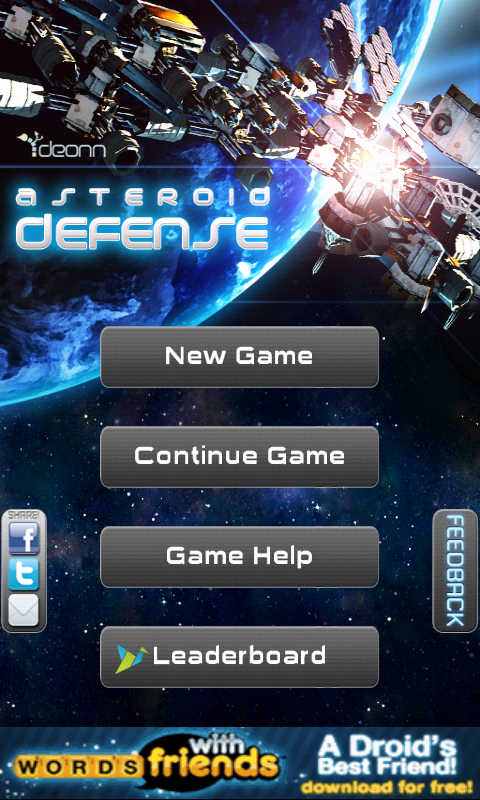
Chimo NgeBlog : 16 Jul Asteroid Tower Defense 19 [New Game Review] Asteroid Tower Defense Is The New Angry Birds Of Tower Games

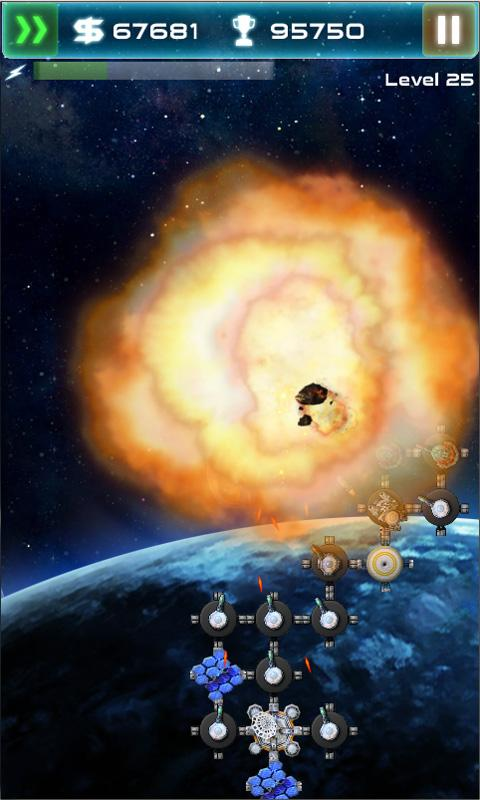
Ok, we've all seen enough post-apocalyptic movies to know what the deal is here. An obscene level of asteroids has suddenly decided to wreak havoc upon this wonderful planet of ours, and it is your job in Asteroid Tower Defense to set up a space defense capable of taking the bloody things out.

Tower Defense titles are certainly not new to the Android platform, with games such as Fieldrunners HD and Tower Raiders already in the market, and the concept is simple enough, but as you progress through the levels, things get considerably harder as the asteroids increase in size and speed. The graphics and overall polish are excellent, which adds a lot of value to this game.

snap20110716_192248 snap20110716_192258 snap20110716_192320

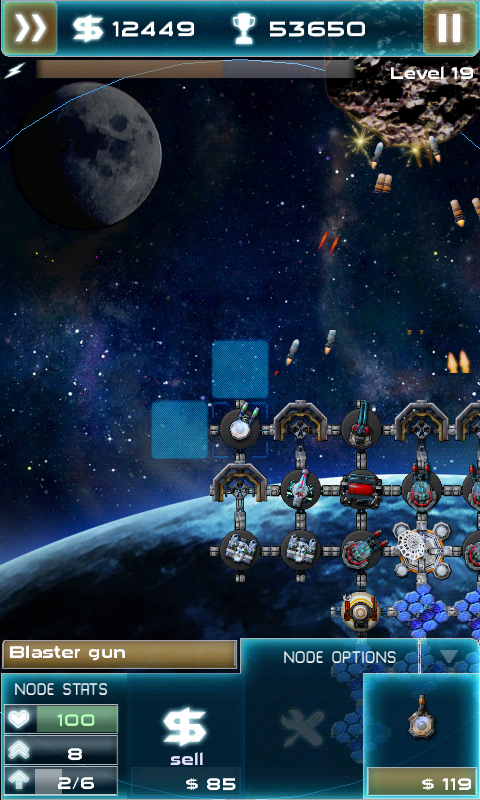
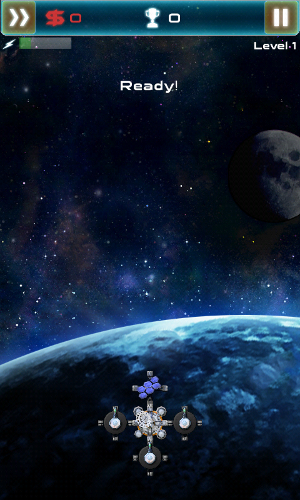
When setting up your perimeter, you begin with a command center and two solar panels to power your operation. Of course, solar panels aren't going to be much good on their own when you need to take out large asteroids, so you also have a variety of weapons which you can choose from, and they can be attached to either side of existing units.

Depending on how much money you have in the bank, you can take your pick from eight units:

  • Blaster gun ($100)
  • Rocket launcher ($200)
  • Shield ($100)
  • Solar panels ($200)
  • Freeze cannon ($500)
  • Splitter laser ($1000)
  • Repair drone ($300)
  • Command center ($5000)

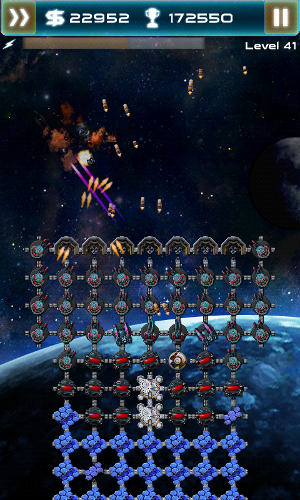
Each unit has different attributes and ranges. A blaster gun for example, has a rapid fire but low range, whereas the rocket launcher is much slower at firing but has a longer range. You can erect shields around your units to stop them from being destroyed in many of the blasts that will be occurring as the game progresses, and you need to have more solar panels depending on how many weapons you build up.

As you advance through each level, some upgrades will become available for your existing weapons so you need to keep an eye out for those, as the targets will become a lot tougher too. So not to make it too easy for you, there is a limited amount you can purchase at any time depending on how much money you have. In the early levels, I didn't find myself needing an abundance of weapons, and as the game goes on you have more than enough to buy what you need as you get more cash for every asteroid that your weapons take down.

snap20110716_192343 snap20110716_192413 snap20110716_192424

I was really impressed at the graphics of Asteroid Defense on my Nexus One. All of the units on the screen looked crisp and well detailed, and there wasn't any hint of a slowdown when there were lots of incoming asteroids and shots being fired all at once. All of the different weapons being fired at the same time made for a pretty spectacular fireworks show - even if it was only 3.5 inches big - and it will undoubtedly look even better if you have a larger device.

As this is 2011, every game and its sequel has some kind of social aspect built in it, and although Asteroid Tower Defense is a little light on the social side, it does have a community high score ranking so that you know how you're doing compared to other players. This is worked out based on the total score you achieve during the game. If I were the developer, I'd have thrown in the option to share your score on Twitter or Facebook, as it would most likely result in more people knowing about the game, but it isn't a huge miss for most users. You achieve points through destroying units and building up your military presence in orbit, although you can get extra points easily by tapping on special missiles which make their way down your screen with the asteroids. These missiles have various abilities, and depending on which one you tap you may receive some more cash to help build more units, heal all of your existing units back to full health, wipe out all of the asteroids that are currently on the screen, and get additional points too.

asteroid tower defense start asteroid tower defense battle asteroid tower defense explosion

As this is a free game, it is ad-supported. I would personally rather pay for a title and have no ads than have a free game which throws ads in your face whilst you're trying to save your planet (these things can get a little distracting, and as much as I do love the capitalist nature of our species I'd rather spend money on a planet that hasn't been wiped out by asteroids, thank you very much). It is fortunate, then, that the ads in Asteroid Tower Defense are few and far between. One would occasionally appear at the bottom of my screen, but most of the time the only ads you saw were saved for the gap between levels where you were given a menu to choose from. Despite this, I would like the developer to consider placing a paid title of the game on the Market as well for those users who would prefer to play without ads.

This game is probably the most addictive mobile title that I've played in months. If I hadn't been so engrossed, you would have probably seen this review about 2 hours earlier. For a free title, it's incredibly well developed, stable and really enjoyable to play, so get down to the Market, or click on the link below, and download it to your phone or tablet!


READ MORE - Chimo NgeBlog : 16 Jul Asteroid Tower Defense 19 [New Game Review] Asteroid Tower Defense Is The New Angry Birds Of Tower Games

Chimo NgeBlog : Five Smartphone Hacking Protection Tips in Light of News of The World

The News Corp./Rupert Murdoch trial has put the spotlight on phone hacking by News of the World, but should the average consumer worry about their smartphones being hacked?

The immediate answer is “no.” According to a recent Mashable article: “Experts say that it's still fairly easy to hack into your phone, but unless you're a celebrity, you're unlikely to be a target.”

However, the reality is that smartphones are progressively taking on the roles of computers and wallets. Some airlines like US Airways send boarding passes right to customers’ smartphones, if they choose that option. Credit card companies American Express, Discover, MasterCard and VISA recently signed a deal with Isis, a mobile-payments venture from AT&T, Verizon and T-Mobile that will allow consumers to purchase items by waving phones over scanners.

As smartphones migrate to include electronic credit cards, thus making them mobile carriers of personal identity information, smart smartphone security practices are of the utmost importance for consumers.

Jeff Paradise, executive director of IdentityHawkSM, a leading online identity protection service, has five key tips for consumers with smartphones starting now.

1. First and foremost, have a password to lock and secure your phone should you lose it. “It has been reported that 54% of owners of mobile phones do not password protect them,” noted Paradise.

2. Change passwords frequently to ensure better protection of the secure information accessible via their phones. “We suggest that user change it at least two times per year,” Paradise said.

3. Watch the phone calls and emails you receive asking for personal information. “You do not know who could be a personal hacker,” Paradise noted.

4. Have a backup of all the information on your phone. “If you lose your phone, you will want to be able to retrieve all data,” Paradise added.

5. Leave no phone behind. “While it may seem obvious, lots of people just leave their phones on desks, tables, even at the office – and walk away. But we recommend that you put them in pockets, holsters, or bags to make them less likely to be left behind,” Paradise said.

Paradise concluded, “Since personal identity information is out there - whether people like it or not - on phones, laptops, in the mail - everywhere; identity protection services can be a central monitoring station to manage the total universe of personal identity information from bank accounts to smart phones. If there is an identity breach incident via smartphone hacking or old-fashioned wallet theft - IdentityHawk members will be alerted to changes in their identity activity tracked by our 24/7 Identity Security Scanning.”

About IdentityHawk

IdentityHawk is a leading identity protection service that aggressively zeroes in on potential threats to help consumers safeguard their identity. Members are warned of potential identity risks so they can take steps to stop fraud before it starts. IdentityHawk is a product of FYI Direct, Inc., a leader in direct-to-consumer credit and identity protection services. For more information, go to www.identityhawk.com.


READ MORE - Chimo NgeBlog : Five Smartphone Hacking Protection Tips in Light of News of The World