Pages

Category

Techno (122) Gadget (84) Komputer (81) Smartphone (76) Internet (74) Tips dan Trik Komputer (64) Pernak pernik (57) Android (51) Facebook (25) Softwear (22) Computer Virus (20) Game (18) Antivirus (15) Job Application (15) Symbian (15) sex (15) Movie (14) Berita Unik (13) Kesehatan (11) Hardwear (4) BlackBerry (3) Gosip (2) Camfrog (1) Hukum (1) humor (1)

Thursday, July 28, 2011

Chimo NgeBlog : 40 Google+ Tips and Tricks for Power Users


Google+ is all the rage right now. Even under its limited-invite "field trial" phase, the social sharing service is growing in leaps and bounds, with oodles of new users joining every day and even more champing at the bit to get in.

Most of us, however, are only beginning to scratch the surface of what Google+ can do; like many Google products, G+ is brimming with advanced features and untapped tweaks. That's why I decided to put together this massive list of Google+ tips and tricks. It includes some of the best power-user pointers I've found both from my own experimentation and from following some really smart folks in the Google+ universe.

For more G+ tips and general tech talk, be sure to join me on Google+ as well. I promise I won't bite -- at least, not unless you ask really nicely.

Google+ Tips Part 1: The Stream

1. Use hotkeys to get around Google+ faster. In your Stream, press "j" or "k" to move through posts, and press Enter to start a comment. (Pressing Tab and then Enter will cause your comment to be submitted; hitting Tab twice and then Enter will cause it to be cancelled.) You can also press "q" to jump to the Google+ chat box.

2. Hotkeys work in the notification drop-down, too: Press "j" or "k" to move up or down in the list, and then press Enter to open any individual notification. When viewing a notification, "j" or "k" will let you progress forward or backward to other items. Pressing "Esc" will close the notification window altogether.

3. Want more hotkeys? Check out the G+ Extended extension for the Chrome Web browser. It adds a series of additional options, including hotkeys for +1'ing posts, sharing posts, and expanding comments.

40 Google+ Tips and Tricks for Power Users4. If comments are getting out of control in your Stream, try the +Comment Chrome extension. It collapses all comment threads so you see them only when you click to expand. Another good option is the G+me Google+ extension; it leaves comments expanded by default but gives you a one-click option to collapse any thread or post on demand. It also provides badge-style comment counters to help you keep tabs on new activity for items you've collapsed.

5. You can take a specific item entirely out of your Stream by clicking the small drop-down arrow next to it, then selecting "Mute this post." That'll also keep you from receiving any future notifications about the item.

6. On your own posts, that same drop-down arrow holds options to shut down comments and prevent people from resharing. The commands affect only the specific item you're viewing.

7. Sometimes leaving a comment on an active post can turn into a bouncing-screen challenge, thanks to the top-of-page activity always pressing your Stream downward. To solve this, click the drop-down arrow next to the post you're viewing and select "Link to this post." That'll open the post in a new tab; type your comment there, then close the tab when you're finished.

8. Google+ lets you stylize text within posts and comments. To italicize, sandwich your text with underscores _like this_; to make text bold, use asterisks *like this*; and to create a strikethrough effect, use dashes -like this-.

9. Make Google+ a little easier on the eyes with the Google+ Ultimate extension for Chrome. It separates posts into individual boxes with an offset background and forces the top status bar and left sidebar to stay in fixed positions while you scroll. Another good option is the similar Usability Boost extension; it gives a slightly different modified look to the site that some users may prefer.

10. Mention (or "tag") someone in a post or comment by typing "+" or "@" and then the person's name. Google+ is still a bit wonky at times about bringing up the right result; try typing the name slowly and enclosing it in quotation marks (e.g. +"Bob Sacamano") if you have trouble.

11. Improve the G+ reply mechanism immensely by grabbing the Replies and More Google+ Chrome extension. The extension puts links throughout G+ that let you reply to the author of any post or comment with a single click -- and without all the "+"-typing hassle.

12. To start a private conversation with a friend or multiple friends, just share an update like you normally would -- but be sure to remove "Public" and any other circles from the share box. Then, tag your friend or friends using the "+" syntax mentioned above. They'll receive notifications about the message, and you'll be able to have an ongoing dialogue in the comments for the post. If you want to be extra safe, you could also disable resharing using the process described in tip #6.

13. Power up your Google+ Stream with the +Photo Zoom Chrome extension. With it installed, you can hover your mouse over any photo in your Stream to see an enlarged version of the image right there.

14. The Google+ mobile app allows you to view posts from people in your geographic area (using the section labeled "nearby"). Little-known fact: You can access that function from your desktop, too; just load the mobile version of Google+ to do it.

15. The Google+ mobile app has a hidden feature of its own: When viewing your Stream, press the menu key and select "Manage Views." Then, check off all your favorite circles and select "Done." You'll now be able to swipe right from the main Stream to view those circles individually.

Google+ Tips Part 2: Circles

16. Use Google+ to save posts and other important content. Go to your Circles page and search for your own name. Add yourself to a new circle called ".Save" (or something to that effect). Then, anytime you see something in your Google+ Stream that you want to save, just share it with your .Save circle. You can browse through your saved stuff by opening your .Save stream (it'll be at the top of the "Stream" list on the left-hand side of your Google+ home page). No one other than you will be able to see it.

17. If you use a note-taking service like Evernote, you can save content directly from Google+ into your off-site notepad. First, find your account-specific Evernote email address. Add that address into a new Google+ circle called "Evernote" -- then, anytime you want to save something from Google+ to Evernote, just share it with that circle. Google+ will send the content in an email, and Evernote will translate it into a notebook item in your account.

18. Want certain circles to show up higher than others in the main Stream list? Circles whose names begin with a period (like ".Save") will always shoot up to the top. Names starting with an asterisk (like "*Important") will appear next.

19. The default Google+ circles will always appear above everything else. To get around this, create your own new circles to replace the default ones (e.g. "My Acquaintances" to replace "Acquaintances," and so on). Be sure to move everyone from the default circle to your new replacement one, then delete the default circle when you're done.

20. When moving people into circles on your Google+ Circles page, hold down Ctrl or Shift to select more than one person at a time. You can also click and drag to draw a box and select multiple people to move.

21. To copy one entire circle into another circle, click on the first circle and select "View circle in tab." Then select "More actions" and "Select all." Now, just drag the entire group down into the other circle and -- voilà! -- the deed is done.

22. Change the layout of the Circles page by clicking and dragging the divider line up or down between circles and people. This allows you to create more space on either side of the line.

23. If you want to look at a lot of people at once on the Circles page, try pressing Ctrl and "-" a few times to zoom your browser out and make the content smaller. You can always press Ctrl and "0" to return to the normal view.

24. From the Circles page, double-click on any person to jump right to his or her profile.

25. Try this: On the Circles page, hover your mouse over a circle that has at least 30 people in it, then scroll with your mouse's scroll wheel. The faces in the circle will rotate around like a carousel, giving you a nice graphical way to see who's inside.

Google+ Tips Part 3: People and Profiles

26. Find new people by searching for topics or locations in the search box at the top of the Google+ page. You'll get back a list of people who have your keyword somewhere in their profile.

27. Search Google+ from Google by putting "site:plus.google.com" at the end of your query. To search only through posts you've written or shared, use "site:plus.google.com/[your Google ID]" -- replacing "[your Google ID]," of course, with your own unique Google ID (the long number that appears in the URL when you click on your profile).

40 Google+ Tips and Tricks for Power Users28. If you want to get really fancy, you can create special commands for searching Google+ within Chrome. Go into the "Manage search engines section" of your browser's settings and add a new entry called "Google+ Posts." Set the keyword as "post" and the URL as "{google:baseURL}search?q=site:plus.google.com inurl:posts/* %s." Add another new entry called "Google+ Profiles." Set its keyword as "profile" and its URL as "{google:baseURL}search?q=%s&tbs=prfl:e." Then, when you want to search through Google+ posts, just type "posts" followed by your query into the browser's location bar. To search Google+ profiles, type "profiles" followed by your keyword.

29. Jazz up your Google+ profile with a row of photos along the top of the page. Click the "Edit Profile" button on your profile page and then click on the large blank space beneath your name and short bio. There's plenty of room for creativity; check out this story at Mashable for some supercool examples.

30. You can edit photos right within Google+. Open any image from the "Photos" tab of your profile, then click the drop-down box labeled "Actions" and select "Edit photo." There, you'll find a variety of options for color and contrast correction as well as special effects.

31. All of your Google+ photos are actually stored in Picasa. You can see and share them from Google's Picasa Web Albums site.

32. Google+ makes it easy to see how your profile looks to other people. Just go to the "Profile and privacy" section of the Google+ settings and type any user's name into the box labeled "See how your profile appears to other users." Click "Preview," and you'll get a glimpse at yourself through someone else's eyes.

33. Get a permanent link to any Google+ post by clicking on its timestamp. If the post was shared publicly, this link will work for anyone -- even if they aren't signed into the Google+ service.

34. Expand your Google+ sharing options with the Extended Share extension for Chrome. It gives you added commands on every post to send the content to Twitter, Facebook, LinkedIn, or Tumblr.

35. Google+ doesn't officially offer RSS feeds yet, but you can make your own by adding your Google+ ID number to plusfeed.appspot.com. Mine, for example, would be http://plusfeed.appspot.com/108233028875375016776.

36. If you're jonesing to send your Google+ updates directly into other social networks, you can use your newly created RSS feed to do it. A service called Twitterfeed will take that feed and shoot it straight into your Twitter and/or Facebook account. (Just don't blame me when everyone on Twitter and Facebook starts unfollowing you.)

40 Google+ Tips and Tricks for Power Users37. Anytime you +1 a story on the Web, it'll show up in the "+1" tab of your Google+ profile, giving you an easy way to save favorites or stories you want to read later. The +1 Button Chrome extension puts the +1 button into your browser's URL bar so you always have easy access.

38. Ever find yourself browsing in another tab and constantly switching back to Google+ to look for new notifications? Install the G+ Count Chrome extension. It puts your current notification count in the front of your Google+ page title so you can always see it at a glance.

39. For even more robust G+ browser integration, give the Surplus Chrome extension a whirl. It adds a live Google+ notification count to the top of your browser; you can even click the button to access your notifications right there, without having to open Google+ at all.

40. Google doesn't yet offer a way to create a memorable URL for your Google+ profile, but some third-party services are stepping up to fill the gap. Try gplus.to; you give it your Google+ ID number and pick a nickname, and it gives you a short link that points directly to your page. Or, if you have your own domain and are comfortable messing with the .htaccess file, you can create a "yourdomain.com/+" redirect with a single line of code. Googler Daniel Sandler has posted detailed instructions, fittingly enough, on Google+.


READ MORE - Chimo NgeBlog : 40 Google+ Tips and Tricks for Power Users

Wednesday, July 27, 2011

Chimo NgeBlog : HTC Status Facebook Phone Is Here


HTC Status Review: It looks like HTC has done it again. Only 3 years ago a hardly-heard-of small Taiwanese tech company, HTC recently released another 1st in smartphone technology. Not content with the fastest phone of all time, the Thunderbolt, and the first-ever glasses-free 3-D phone, the Evo 3-D 4G, the HTC Statusis now here! Better known as the Facebook phone, the HTC status is the 1st phone to deliver built-in, one button access to Facebook posts and status updates.

That’s right, with the push of a single button at the bottom of the front of the HTC Status below the QWERTY keyboard, videos, text, and chat are all instantly sent to your Facebook page. Far from being only a Facebook phone, the budget price HTC Status also delivers a full feature set, and is easily one of the best values in the entire mobile marketplace.

Pre-order the HTC Status smartphone for only one penny at Amazon for both new customers and upgrades.

The features on the HTC Status will never outperform an iPhone 4 or HTC Thunderbolt, but there is more than enough to keep the average smartphone customer happy. However, sporting a small 2.6 inch display above the large full QWERTY keyboard, this is definitely a phone centered on text-based activities. Twitter updates, Facebook posts and status updates, as well as text messaging are all now super-easy thanks to the huge keyboard.

With an 800 MHz single core processor, you will not be getting the best multitasking experience of all smartphones. However, you will get a processor strong enough to handle average web surfing, video viewing and picture taking. And at a retail price of only one penny, the HTC Status is undeniably one of the best values in mobile technology.

Visually the Status is a very attractive phone, with a polished silver finish, and unique contoured angle. Right where the keyboard begins the contour is angled towards you. This applies an almost laptop-like feature, though not to quite the same degree. That slight incline makes for texting ease, and better viewing. And running on the super-quick AT&T HSPA 3G network, all web surfing, video viewing, and gaming is fast and efficient.

The next time you’re walking down the street and see an odd penny on the sidewalk, don’t pass it by. Stop, pick it up, and treat yourself to one of the best values mobile phones have to offer. The HTC status Facebook phone is certainly not a Facebook-only phone, but more a budget phone for all-around users.

READ MORE - Chimo NgeBlog : HTC Status Facebook Phone Is Here

Sunday, July 24, 2011

Chimo NgeBlog : Fujitsu Announces Smartphone Dual-booting Symbian, Windows

In this day and age, it's really hard to stand out in the smartphone world. There's only so much you can do with the default slab design, and despite all the talk, iOS and Android are petty much the same thing in the grand scheme of things. Thank god for Japan, though. At least those guys have the sheer determination to build a smartphone which dual boots Symbian and... Windows 7. No, not Windows Phone 7. Windows 7.

Thank you Fujitsu, for being bat-shit bonkers enough to actually build this device and bring it to market. It's called the Fujitsu F-07C, and it's billed as the world's smallest PC. It sports an Intel Atom Z600 1.2Ghz (running at 50%, they claim, which seems far too slow to run Windows 7), 1GB DDR-400 RAM, 32GB SSD for storage, and a 4" touchscreen with a 1024×600 resolution.

With the push of a button, you can switch between Windows 7 SP1 32bit on the one hand, and Symbian on the other. While in Symbian mode, it has a standby time of about 600 hours, and a talk time of about 370 minutes. In Windows 7 mode, however, it will only last for a measly 2 hours. Epic trade off is epic.

Still, this thing is so incredibly awesome I just don't know where to start. It's completely idiotic, and it's hard to imagine this being anywhere near as pleasant to use as Windows Phone 7 or whatever, but still... It's so geeky!

Fujitsu will officially launch this phone tomorrow, and sadly, only in Japan. There's no word on pricing, but I can't imagine this thing being cheap, especially if you factor in shipping it over.


READ MORE - Chimo NgeBlog : Fujitsu Announces Smartphone Dual-booting Symbian, Windows

Chimo NgeBlog : 16 Jul Asteroid Tower Defense 19 [New Game Review] Asteroid Tower Defense Is The New Angry Birds Of Tower Games

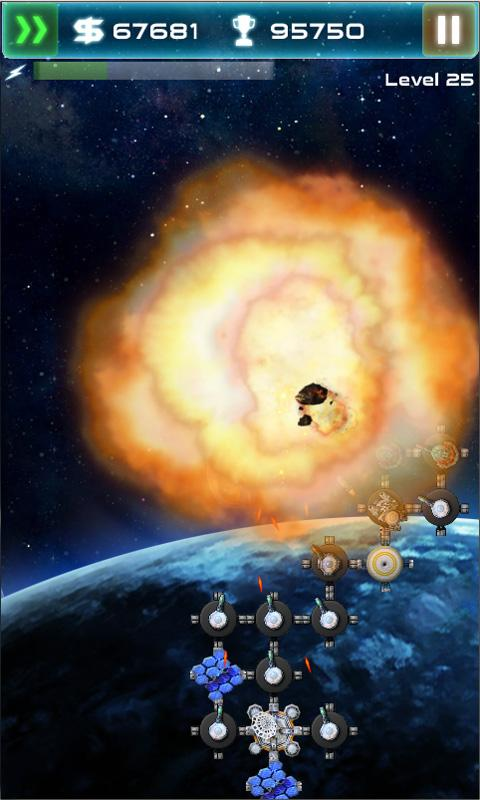
Ok, we've all seen enough post-apocalyptic movies to know what the deal is here. An obscene level of asteroids has suddenly decided to wreak havoc upon this wonderful planet of ours, and it is your job in Asteroid Tower Defense to set up a space defense capable of taking the bloody things out.

Tower Defense titles are certainly not new to the Android platform, with games such as Fieldrunners HD and Tower Raiders already in the market, and the concept is simple enough, but as you progress through the levels, things get considerably harder as the asteroids increase in size and speed. The graphics and overall polish are excellent, which adds a lot of value to this game.

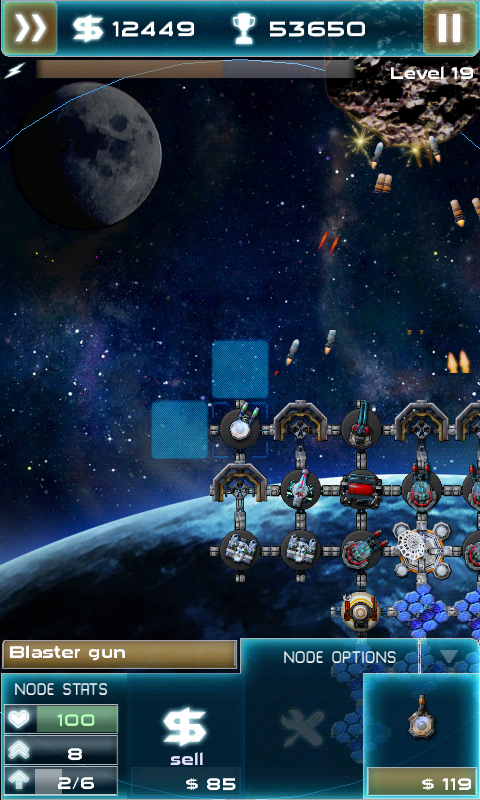
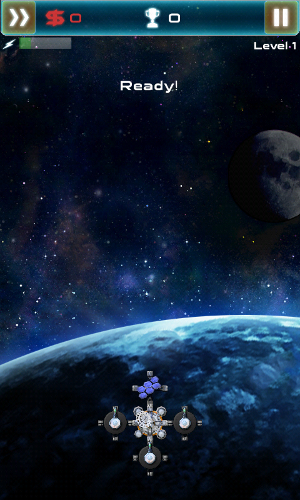
snap20110716_192248 snap20110716_192258 snap20110716_192320

When setting up your perimeter, you begin with a command center and two solar panels to power your operation. Of course, solar panels aren't going to be much good on their own when you need to take out large asteroids, so you also have a variety of weapons which you can choose from, and they can be attached to either side of existing units.

Depending on how much money you have in the bank, you can take your pick from eight units:

  • Blaster gun ($100)
  • Rocket launcher ($200)
  • Shield ($100)
  • Solar panels ($200)
  • Freeze cannon ($500)
  • Splitter laser ($1000)
  • Repair drone ($300)
  • Command center ($5000)

Each unit has different attributes and ranges. A blaster gun for example, has a rapid fire but low range, whereas the rocket launcher is much slower at firing but has a longer range. You can erect shields around your units to stop them from being destroyed in many of the blasts that will be occurring as the game progresses, and you need to have more solar panels depending on how many weapons you build up.

As you advance through each level, some upgrades will become available for your existing weapons so you need to keep an eye out for those, as the targets will become a lot tougher too. So not to make it too easy for you, there is a limited amount you can purchase at any time depending on how much money you have. In the early levels, I didn't find myself needing an abundance of weapons, and as the game goes on you have more than enough to buy what you need as you get more cash for every asteroid that your weapons take down.

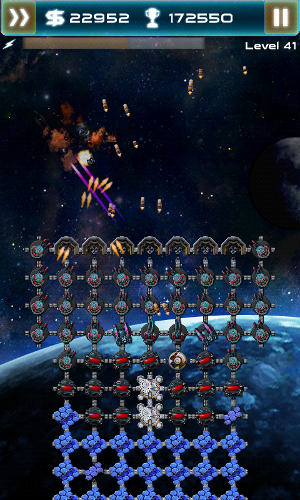
snap20110716_192343 snap20110716_192413 snap20110716_192424

I was really impressed at the graphics of Asteroid Defense on my Nexus One. All of the units on the screen looked crisp and well detailed, and there wasn't any hint of a slowdown when there were lots of incoming asteroids and shots being fired all at once. All of the different weapons being fired at the same time made for a pretty spectacular fireworks show - even if it was only 3.5 inches big - and it will undoubtedly look even better if you have a larger device.

As this is 2011, every game and its sequel has some kind of social aspect built in it, and although Asteroid Tower Defense is a little light on the social side, it does have a community high score ranking so that you know how you're doing compared to other players. This is worked out based on the total score you achieve during the game. If I were the developer, I'd have thrown in the option to share your score on Twitter or Facebook, as it would most likely result in more people knowing about the game, but it isn't a huge miss for most users. You achieve points through destroying units and building up your military presence in orbit, although you can get extra points easily by tapping on special missiles which make their way down your screen with the asteroids. These missiles have various abilities, and depending on which one you tap you may receive some more cash to help build more units, heal all of your existing units back to full health, wipe out all of the asteroids that are currently on the screen, and get additional points too.

asteroid tower defense start asteroid tower defense battle asteroid tower defense explosion

As this is a free game, it is ad-supported. I would personally rather pay for a title and have no ads than have a free game which throws ads in your face whilst you're trying to save your planet (these things can get a little distracting, and as much as I do love the capitalist nature of our species I'd rather spend money on a planet that hasn't been wiped out by asteroids, thank you very much). It is fortunate, then, that the ads in Asteroid Tower Defense are few and far between. One would occasionally appear at the bottom of my screen, but most of the time the only ads you saw were saved for the gap between levels where you were given a menu to choose from. Despite this, I would like the developer to consider placing a paid title of the game on the Market as well for those users who would prefer to play without ads.

This game is probably the most addictive mobile title that I've played in months. If I hadn't been so engrossed, you would have probably seen this review about 2 hours earlier. For a free title, it's incredibly well developed, stable and really enjoyable to play, so get down to the Market, or click on the link below, and download it to your phone or tablet!


READ MORE - Chimo NgeBlog : 16 Jul Asteroid Tower Defense 19 [New Game Review] Asteroid Tower Defense Is The New Angry Birds Of Tower Games

Chimo NgeBlog : Five Smartphone Hacking Protection Tips in Light of News of The World

The News Corp./Rupert Murdoch trial has put the spotlight on phone hacking by News of the World, but should the average consumer worry about their smartphones being hacked?

The immediate answer is “no.” According to a recent Mashable article: “Experts say that it's still fairly easy to hack into your phone, but unless you're a celebrity, you're unlikely to be a target.”

However, the reality is that smartphones are progressively taking on the roles of computers and wallets. Some airlines like US Airways send boarding passes right to customers’ smartphones, if they choose that option. Credit card companies American Express, Discover, MasterCard and VISA recently signed a deal with Isis, a mobile-payments venture from AT&T, Verizon and T-Mobile that will allow consumers to purchase items by waving phones over scanners.

As smartphones migrate to include electronic credit cards, thus making them mobile carriers of personal identity information, smart smartphone security practices are of the utmost importance for consumers.

Jeff Paradise, executive director of IdentityHawkSM, a leading online identity protection service, has five key tips for consumers with smartphones starting now.

1. First and foremost, have a password to lock and secure your phone should you lose it. “It has been reported that 54% of owners of mobile phones do not password protect them,” noted Paradise.

2. Change passwords frequently to ensure better protection of the secure information accessible via their phones. “We suggest that user change it at least two times per year,” Paradise said.

3. Watch the phone calls and emails you receive asking for personal information. “You do not know who could be a personal hacker,” Paradise noted.

4. Have a backup of all the information on your phone. “If you lose your phone, you will want to be able to retrieve all data,” Paradise added.

5. Leave no phone behind. “While it may seem obvious, lots of people just leave their phones on desks, tables, even at the office – and walk away. But we recommend that you put them in pockets, holsters, or bags to make them less likely to be left behind,” Paradise said.

Paradise concluded, “Since personal identity information is out there - whether people like it or not - on phones, laptops, in the mail - everywhere; identity protection services can be a central monitoring station to manage the total universe of personal identity information from bank accounts to smart phones. If there is an identity breach incident via smartphone hacking or old-fashioned wallet theft - IdentityHawk members will be alerted to changes in their identity activity tracked by our 24/7 Identity Security Scanning.”

About IdentityHawk

IdentityHawk is a leading identity protection service that aggressively zeroes in on potential threats to help consumers safeguard their identity. Members are warned of potential identity risks so they can take steps to stop fraud before it starts. IdentityHawk is a product of FYI Direct, Inc., a leader in direct-to-consumer credit and identity protection services. For more information, go to www.identityhawk.com.


READ MORE - Chimo NgeBlog : Five Smartphone Hacking Protection Tips in Light of News of The World

Saturday, July 23, 2011

Chimo NgeBlog : Hands on: Fujitsu Stylistic Q550 review


If you can't wait until next year for Windows 8 tablets, the Atom Oak Trail Windows 7 slates promised at CES are starting to hit the market now (and you'll be able to upgrade to Windows 8 when it comes along).

Fujitsu's Q550 is a 10-inch tablet with the same dual-digitiser N-trig screen as the HTC Flyer – and a copy of Windows 7 Professional to take advantage of the active pen. It also has a slew of security features that clearly mark it out as a business system (fingerprint reader, smartcard reader, TPM, whole disk encryption and theft-tracking).

N-trig

The price is definitely aimed at businesses too; £749 for the Wi-Fi model with 30GB SSD, £799 for the 3G 30GB version and £859 for the 62GB system (those odd capacities are explained by the 2GB recovery partition).

You can add more storage with the SD card slot and USB port (or plug in a 3G dongle); there's an HDMI port as well as a docking port that you can use for a cradle or a promised clip-on keyboard.

Fujitsu stylistic q550

The front-facing camera is at the top of the device in portrait mode but works just as well in landscape.

Fujitsu stylistic q550

It has the usual low VGA resolution and the image was a little on the dark side in a dim room, but in bright light the video was clear with plenty of crisp detail; there's a 1.3 megapixel camera on the back, which is at the top when you hold it in landscape view.

Fujitsu stylistic q550

The fingerprint reader is on the back so you can use it with your thumb without having to juggle the slate, and there's a row of handy buttons on the side, between the power and the Wi-Fi slider.

These take some of the pain out of using Windows without a keyboard; you can press Enter or Ctrl-Alt-Delete with a single button press, open the on-screen keyboard without fumbling to tap in a text field first or rotate the screen if you've turned off auto rotation.

Fujitsu stylistic q550

What there isn't space for is the pen; you can hang it from the lanyard hole or keep it in the case, which also doubles as a stand (secure on a table slightly precarious on your lap). Unlike a Wacom pen the N-trig pen has a tiny battery in but otherwise it's very similar; there's a right mouse button on the side and writing with the pen is smooth and fluid.

Fujitsu stylistic q550

That means you can take advantage of the excellent handwriting recognition in Windows (although it's a shame you don't get a copy of OneNote, just Office Starter) and you don't need to worry about resting your hand on screen while you write.

Touch the screen without the pen and you get four-point multitouch; pinch zoom, swipe photos, scroll in Internet Explorer 9 or tap in slight frustration at the tiny Windows icons. Selecting programs from the Start menu with a finger was easy, maximising a window by pressing the button in the corner was more hit and miss. This isn't quite as sensitive a touch screen as the Acer Iconia W500 or the HP EliteBook 2740, but it's immeasurably better than the Dell Inspiron Duo.

The N-trig sensor does give the otherwise bright and vivid 1280 x 800screen a slightly grainy look. The viewing angle is impressive though; you have to turn the screen a long way away from you before you can no longer read it, and the anti-glare coating makes it readable in quite strong sunlight.

Performance is a little less impressive. The 1.5GHz Atom Z670 in the Q550 feels sluggish when you switch between applications – more sluggish than you'd expect from an Atom of this speed. We suspect that's because the default power setting throttles the processor speed down significantly to get the promised 8-9 hours of battery life.

Fujitsu stylistic q550

Let the processor run faster and you get a standard Atom system; nothing like the Core i5 processors in larger tablets from Asus and HP (or Fujitsu's own convertible models), but far more usable, especially for the kind of work you'll want to do with a tablet when you're out and about. (We're also looking forward to testing the performance without some of the pre-installed software, including Norton antivirus.) The battery also pops out easily if you want to carry a second to make sure you have all-day battery life.

Fujitsu stylistic q550

We weren't at all impressed with the Infinity Lounge interface Fujitsu has come up with for viewing widgets and launching shortcuts; there's no SDK yet and it was unimpressively slow (although Fujitsu said a new version would be faster). If it does speed up, it would be a finger-friendly combination of icons and information, but with a very corporate look.

The case is sturdy without being chunky; there's a definite angle to the bezel and back but comfortably rounded corners. The ports don't make it uncomfortable to hold and the plastic chassis has enough grip. At around 800g (890g with the 3G module) and 16mm it's heavier and thicker than an iPad or Android tablet but it doesn't have a fan blowing hot air at you, and even though you can see exactly where the battery is, it doesn't make it feel unbalanced in your hand.

Fujitsu stylistic q550

So what will you want to do with the Q550? Web browsing and catching up on email, especially with the 3G model coming next week.It's ideal for watching video and looking at photos, because there's no problem with any codec; after all, this is Windows. Looking up a map as you walk down the street? Any tablet is a bit big for that. Running your standard Windows apps; definitely, although you might have to pull out the pen for some icons and menus.

Filling out forms and taking handwritten notes in meetings? That's exactly what Fujitsu has designed it for and once you strip the extraneous background apps off it should do that extremely well. It's far more portable than the previous generation of convertible Windows tablets. That fact that it runs Windows is its strength – as a business machine – but it has the usual drawbacks of size, weight and the compromise of using a mouse interface without a mouse.

READ MORE - Chimo NgeBlog : Hands on: Fujitsu Stylistic Q550 review

Chimo NgeBlog : Top 10 features missing from Google+

There's a lot to like about Google+ and it has the potential to make a major impact on the future of the internet. After just two weeks in closed beta, it already has 10 million users. Still, it's far from perfect. I've put together my list of the top 10 things Google needs to fix or add in Google+. Take a look at the list and then jump into the discussion and argue with me by adding the fixes that you think deserve more attention in Google+.

1. Let us mute someone from the Stream

On Google+ it is a lot easier to find friends and people to follow than any social network that has been built so far. And, with Circles, you can divide them into groups and then easily jump between the various streams of your Circles. However, there is also the big "Stream", which aggregates all of the people you have in Circles and this is the default view you see on Google+. The one feature missing here is the ability to mute a person from the Stream (while still being able to see their updates in their Circle). You can mute individual posts from the Stream, but you can't currently mute a person. This is badly needed so that you can stay connected to interesting people but not have the overly chatty people monopolise your Stream.

2. Show list of my +1 items from Google+

The +1 button allows you to give the thumbs up to really good Google+ posts and updates. However, this should also work like a list of favourites or bookmarks. Right now, there's no way to see a list of the things where I have clicked +1. If I go to my profile there is a +1 tab, but that's the list of external items (from websites or Google search results) where I've clicked +1. The items from Google+ itself need to be added to this list.

3. Fix the share and re-share issue

One of the stickiest issues Google needs to figure out is the Share functionality. If you're familiar with Twitter, this is like a Retweet (RT). However, when you share a post on Google+, it removes all of the comments and +1s, allows you to add your own comments above the post, and then your followers can add their own pluses and comments. That can be pretty cool, except when a bunch of the people you follow all share and re-share the same post. With the approach Google has taken to sharing, there may not be an easy answer, but something will need to be done to sort this out, at least for stuff that gets shared more than two to three times in your stream.

4. Let us sort the stream by raw timeline

By default, the big Stream (and the Circle streams as well) are sorted by relevance and popularity, based on the number of +1 votes and shares, so that the most interesting stuff rises to the top of the Stream. However, Google should also give us the option to sort the stream based solely on timestamp, so that we can see the stuff from people who post interesting things but don't have as many followers to buoy their posts.

5. Allow comments to be threaded

This is an issue of intense debate, but I think Google should allow threaded commenting on Google+ so that people can comment on and respond to comments, and not just the original post. That would make the threads a lot easier to follow when they get a lot of comments. And, comments on comments could be collapsed by default and users could simply click a plus sign to expand and view them. However, the threading would only need to go three layers deep to allow a response and a counterpoint.

6. Add more functionality to mobile

It's impressive that Google had its Android app for Google+ ready to download the moment that it launched the "Field Trial" of the new service, and shortly thereafter it submitted an iPhone/iPad app to Apple for approval in the App Store. Even better, the Android app for Google+ is very well done. However, it's not perfect and it could make the mobile Google+ experience a lot better by adding key functionality — eg, the ability to +1 a comment, the ability to join a hangout, the ability to easily flip between the big stream and circle streams, etc. While they're at it, Google should add more core functionality to its HTML app as well. That would be a great way to drive more participation and get a jump on Facebook, which still doesn't have a great mobile experience.

7. Open it up to Google Apps users

In order to get into the Google+ beta you need a Gmail address (or a Google Account). It does not currently work for the Google Apps domains, which are business accounts where the company is using a corporate version of Gmail, Google Calendar, Google Docs and other Google web apps. Google has stated that Google+ pages for businesses and brands are coming soon. Hopefully, Google+ for Google Apps users won't be far behind. Since some people may end up having separate Google+ accounts for personal (Gmail) and business (Google Apps) use, Google should also consider options for letting those users log in to both accounts from different tabs in the Chrome web browser.

8. Integrate private messaging

One of the biggest things Google+ is missing compared to rivals Facebook and Twitter is the ability to send a private message to a mutual contact. Sure, there are a few workarounds and hacks that let you do it, but Google needs to make this part of the product's primary functionality. It also wouldn't hurt to integrate GoogleTalk (instant messaging) as well.

9. Set up verified accounts

Since there are already celebrities showing up on Google+ — and a lot of people who are impersonating celebrities — Google needs to set up something similar to Twitter's Verified Accounts. Just do a search for "Mark Zuckerberg" or "Lady Gaga" on Google+ and take a look at how many accounts there are. There are also plenty of sneaky imposters, like the person who pretended to be Apple's Jony Ive (the account has been deleted).

10. Show list of interactions with each user

Another useful feature that Google should add is the ability to go to a user's profile page and see all of that person's interactions with you — their +1s and comments on your posts, as well as your +1s and comments on their posts. This would help figure out if you should add a person to your Circles, and if so, which Circles you should put them in or add them to.

READ MORE - Chimo NgeBlog : Top 10 features missing from Google+

Friday, July 22, 2011

Chimo NgeBlog : Mozilla's BrowserID Aims to Eliminate Password Fuss


About three weeks after releasing Firefox 5, Mozilla has rolled out a decentralized identity system called BrowserID that utilizes email addresses instead of usernames and passwords for identity authentication to grant access to secure Web sites and online services.

The system is based on a variant of the Verified Email Protocol, which is "a way for a user to prove to a website that they control an email address, through the web browser," according to VEP developer Mike Hanson.

Once a user has set up a BrowserID (a demo experience of this process is provided by Mozilla at Myfavoritebeer.org and a video tutorial is posted below), there's no more need to verify one's identify with per-site passwords when visiting Web sites or signing in to services that support the identification protocol.

The process is secure, according to Mozilla, because "sites get proof of ownership using public key cryptography." And Mozilla has its own verification service, "so you can get started without writing a single line of crypto code."

BrowserID is also browser-neutral, meaning it works not just with Firefox, but "on all modern browsers." Mozilla specifically identifies "recent versions" of Microsoft's Internet Explorer as compatible with BrowserID, as well as unnamed "mobile browsers."

So how does it work and how secure is it really?

Lloyd Hilaiel has written a technical primer on BrowserID, in which he identifies key design features that make it easy for users to grasp, more secure for users because it doesn't allow for weak passwords or easily socially engineerable ones, and better at protecting users' privacy than other authentication systems.

The first nice thing about BrowserID is that it makes a user's email address their identity, which is a natural fit because "[u]sers identify with emails quite naturally, and no new infrastructure is needed to reliably verify ownership of them."

Another benefit for users of BrowserID is that logging-in to secure sites has a one-click, streamlined feel to it that's consistent across all the sites utilizing the protocol.

Next, by design, BrowserID doesn't involve identify providers in the login transaction. That means third parties don't need to be made aware of a BrowserID owner's outside Web activity, "a significant privacy advantage," according to Hilaiel.

Finally, BrowserID utilizes ownership-based authentication, meaning that the browser manages authentication material in such a way that is less reliant than other systems on "knowledge factors"—like a user's birthday or other typical personal information people use for passwords, which can be sniffed out by potential identity thieves.

So what's not to like about BrowserID? Probably the fact that it pretty much only works on Myfavoritebeer.org and a few early adopting Web sites so far. Until the protocol gains a bigger footprint across lots of popular Web destinations, it's just another identity verification process to go through without a lot of return for your time.

Mozilla, unsurprisingly, is strongly encouraging developers to add BrowserID functionality to their sites.

READ MORE - Chimo NgeBlog : Mozilla's BrowserID Aims to Eliminate Password Fuss

Chimo NgeBlog : Top 10 Ways to Speed Up Your Computer’s Boot Time

If there's one thing everyone dreads, it's rebooting their computer. It may only take a minute or two, but it can seem like forever. Here are our top 10 tweaks that'll make your computer boot a little faster.

This is a pretty controversial topic, as there are a lot of startup-tweaking myths out there. So, we took to the streets (of the internet) and searched for as many easy, well-supported tips as we could find. There may be others, some of which are controversial, but these 10 things are almost sure to get you a faster-booting machine.

10. Tweak Your BIOS

Top 10 Ways to Speed Up Your Computer's Boot TimeWhen you first set up your computer, your BIOS is set up to make things a bit more convenient for you, but once you're all set up, those things can be disabled. If you hold the DEL key when you start up your computer (or whatever key your BIOS tells you to enter setup), you can turn on the "Quick Boot" option and move your hard disk to the top of the boot priority list. The Quick Boot setting will turn off the tests your computer runs when it first turns on, and the boot priority tweak will tell your computer not to look for CDs, thumb drives, or other media when it first starts, which will get you booted into your OS quicker. If you ever need to boot from CD though, you'll have to go back into the BIOS and change this again before you do.

9. Clean Out Programs that Launch at Startup

Top 10 Ways to Speed Up Your Computer's Boot TimeOne of the most tried and true ways to speed up your boot process is to keep unnecessary programs from starting up with your computer. You can do this by running msconfig from the Start Menu's search box, and going to the Startup tab. This applications list will tell you what each of those applications does, so you know which ones you can disable and which ones you don't want to. Previously mentioned Soluto is also a fantastic way to clean up these programs, and these days it's got a bunch of other handy features that make it worth a download.

8. Delay Windows Services That Run at Startup

Many people argue that disabling Services from msconfig will also speed up your boot time, but we've found that this is more problematic than anything. However, you can delay certain startup services so that your computer boots quickly and then worries about them later—after all, you don't need all those services the minute you start up your machine.

7. Change Your Boot Menu's Timeout Values

If you're dual-booting your machine, then your boot menu probably has a "timeout value", meaning the amount of time it waits for you to make a selection before it just boots into the default OS. On Windows, this timeout value is often 30 seconds, which is a long time to wait if you aren't looking directly at your screen. To change this timeout value, head to msconfig and click on the BOOT.INI tab, and change the number in the timeout box to something lower. If you're dual-booting with Linux, you're probably running the GRUB boot menu, and you can change the timeout on that too.

6. Disable Unused Hardware

Your computer loads a lot of drivers when it first starts up, some of which you might not even use. Head into the Device Manager from the Start Menu's search box, and look for anything you aren't using—Bluetooth controllers, modems, and virtual Wi-Fi adapters are common culprits. Right-click on the entry you want to disable and hit "Disable". Remember to only do this with things you don't actually use—if you use Wireless Hosted Networks, you'll need to keep those virtual Wi-Fi adapters enabled. It's also worth mentioning here that keeping all your drivers up to date will help this portion of the startup time, too (which you can do with the help of a program like previously mentioned Device Doctor).

5. Keep Your Antivirus Running and Up to Date

Top 10 Ways to Speed Up Your Computer's Boot TimeThis should go without saying, but we'll say it anyway: install some antivirus software, keep it up to date, and run a regular scan. This is more of a preventative measure than an actual boot-speeding tip, but if you ever do get malware, it's sure to slow your computer's boot time. With a good antivirus around like Microsoft Security Essentials, you'll be more protected against that happening. Don't like MSE? There are some great ones out there too, so there's no reason not to have one around.

4. Remove Unnecessary Fonts

Top 10 Ways to Speed Up Your Computer's Boot TimeSince the dawn of time, Windows has loaded fonts at startup and slowed down the boot time. This is less of a problem than it used to be, but it can still slow you down a bit. Windows 7 loads over 200 fonts at startup; even more if you've installed Microsoft Office. Chances are, you use very few of those fonts, so you can hide them to speed up that process. In Windows 7, open up the Fonts folder from the Start Menu's search box, and check off all the fonts you don't need. Then click the "Hide" button in the toolbar. This way, if you ever want them, you can bring them back, but Windows won't load them at startup. Note that just removing a few fonts probably isn't going to make a noticeable difference—you'll probably need to get rid of a few hundred. That said, you might have hundreds more fonts installed than you realized, so that isn't as ridiculous as it sounds.

3. Upgrade Your RAM

Top 10 Ways to Speed Up Your Computer's Boot TimeInstalling more RAM has always been an effective way of speeding up your computer, and that hasn't changed. RAM is pretty cheap these days, so if you're running low, there's no reason not to stock up and make your computer run a little smoother. We've gone over how to replace it in both a desktop and a laptop, and even for the inexperienced, it's a pretty simple procedure.

2. Give Your Computer a Static IP

When you first start up your computer, it spends a significant amount of time asking the network for an IP address. You can get rid of this process altogether by giving your computer a static IP address that never changes. Not only does this make your network easier to manage (since each computer will always have the same IP address), but it can shave a bit more time off your startup. Here's how to do it in different versions of Windows.

1. Install a Solid State Drive

These days, your hard drive is probably the biggest bottleneck in your machine. One of the best upgrades you can make to your computer is to install a solid state drive, which has super-fast read times that can speed up your startup considerably. They're certainly not a cheap upgrade, nor are they without their own maintenance requirements, but if you want to speed up your computer and its boot time, you can't go wrong by installing an SSD. The difference will be shocking.

Again, these aren't the only ways to shorten your computer's boot time, but they are some of the most well-known, trusted methods that we've found. If you have any of your own favorite tweaks, share them with us in the comments, but beware of myths and snake oil—there are a lot of tweaks out there that do more harm than good.


READ MORE - Chimo NgeBlog : Top 10 Ways to Speed Up Your Computer’s Boot Time

Chimo ngeBlog : Gandhi To Hitler Movie Preview

Amrapali Media Vision Pvt Ltd presents GANDHI TO HITLER is all set to hit the screens on 29th July 2011.

Produced by Dr. Anil Kumar Sharma and Directed by Rakesh Ranjan Kumar, the movie stars Neha Dhupia, Raghuveer Yadav, Aman Verma, Lucky Vakharia, Nassar Abdulla, Avijit Dutt, Nikita Anand and nalin Singh in lead roles.

The Music od the movie is given by Arvind and Lyton and lyrics is penned by Dr. Pallavi Mishra


view GANDHI TO HITLER stills

view GANDHI TO HITLER stills
Synopsis:

1939 - A world plagued with unrest and upheaval. Adolf Hitler's ruthless ambition for German expansion in Eastern Europe is becoming increasingly violent and inhuman. Whereas another nation, India, struggles in its fight for freedom against the British as the idealistic Mahatama Gandhi continues to appeal to his countrymen to adopt a stand of non-violence. A stark contrast in ideologies even with an eventual common opponent, Gandhi one day decides to pen a letter to the German dictator... a letter he hoped would persuade Hitler to change his path and avoid the Second World War, avoid the massive calamity that it would bring on.

Gandhi then wrote a second letter to Hitler, this time closer to Hitler's own downfall, at a time when Hitler was plagued with betrayal all around him while confined to an underground bunker. We witness a contrast in the ideologies of these two leaders and the eminent result of Hitler's brutal and catastrophic methods.

Gandhi To Hitler looks at Hitler's downfall, his last days when only his love Eva Braun and his trusted aide Joseph Goebbels stood by him, as the Germany around him crumbled and his trusted comrades deserted him; and through the central young couple Balbir and Amrita we see that the fate of many was determined by the ideology that they chose to adopt.

The film establishes the superiority of Gandhism over Nazism, thereby giving the message of world peace, a message still relevant in today's context where the world continues to grapple with the dark clouds of terrorism.


READ MORE - Chimo ngeBlog : Gandhi To Hitler Movie Preview

Chimo NgeBlog : Movie Preview : Captain America


Thor has his hammer, Green Lantern has his power ring and Wonder Woman has her lariat. But Captain America's shield came first — and it's still one of the coolest superhero accessories in the comics.

There were other distinctions for the star-and-stripes-clad avenger created by writer-artists Joe Simon and Jack Kirby in 1940, prior to America entering World War II.

"Cap" was the first superhero to debut in an eponymously titled book, "Captain America Comics." (Superman and Batman, for instance, debuted in "Action Comics" and "Detective Comics" respectively.) And "Captain America Comics" No. 1 made what was, for its time, a bold editorial statement: Right on the cover, Cap is seen socking Adolf Hitler in the jaw, forcefully established the patriotic intentions of this character.

Cap has gone through many incarnations since debuting 70 years ago. The latest is on the big screen: Marvel Entertainment's "Captain America: The First Avenger," which was directed by Joe Johnston and stars Chris Evans as the titular hero. It opens on Friday.

'GOLDEN AGE' ICON

Captain America co-creator Simon is an icon of the so-called "golden age" of comics along with Jerry Siegel, Joe Shuster, Bob Kane, Bill Finger and Bill Everett. The difference is that, unlike those revered artists and writers, Simon is still very much with us.

"I've always considered myself very patriotic," Simon said in an interview last week.

(The artist, 97, spoke with The Star-Ledger via e-mail. His replies were transcribed by Steve Saffel, an editor for Titan Books, publisher of Simon's new memoir, "Joe Simon: My Life in Comics.")

captain-america-joe-simon.jpg"Joe Simon: My Life in Comics" (Titan Books)

Simon explained that he and Kirby created Captain America as a response to Hitler's rise to power.

"We both read the newspapers," Simon said. "We knew what was going on over in Europe. World events gave us the perfect comic-book villain, Adolf Hitler, with his ranting, goose-stepping and ridiculous moustache. So we decided to create the perfect hero who would be his foil. I did that first sketch of Captain America, and Jack and I did the entire first issue before showing it to (publisher) Martin Goodman at Timely Comics. He loved it immediately.

"But when Captain America came out, America wasn't yet in the war, so the American Nazis weren't happy with what we did to their beloved Führer. ... We had a couple of personal encounters with the Bund (an American Nazi group). But that didn't stop us. If anything, it added fuel to the fire."

Beneath his hooded mask and chain-mail union suit, Captain America's secret identity was Steve Rogers, a citizen deemed too sickly to be accepted by the Army, who instead agreed to undergo a government experiment developed in the hopes of creating a race of super-soldiers.

As Batman did with Robin the previous year, Cap took on a young sidekick, Bucky. He also acquired a unique and scary nemesis: the Red Skull, a Hitler cohort.

Cap's shield was initially triangular in shape, but rival publisher MLJ (later Archie Comics) complained that it looked too similar to a costume design worn by their character, the Shield. With the second issue of "Captain America Comics," Simon and Kirby modified the shield into the circular model that Cap has lobbed at America's enemies ever since.


Simon and Kirby both served during World War II — in fact, Simon guarded New Jersey's coastline during the war.

Recalled the artist: "I joined the Coast Guard rather than wait to be drafted. My first posting was at Long Beach Island, north of Atlantic City, where the Barnegat Lighthouse is located. I've always loved horses, and was assigned to the mounted beach patrol, scanning the shores for enemy ships and submarines.

"We had one fellow who claimed he saw a submarine, and before you knew it, we had soldiers parachuting onto the beach in the middle of the night. They didn't find anything, so they threw him into the brig. Later, we figured out that there really might have been a Nazi sub.

"In the Coast Guard, I met some amazing people — guys like Sid Caesar and Jack Dempsey. I loved it, and even considered making the military my career."

BUSY CHARACTER

In the meantime, Captain America stayed busy. Timely assigned other artists to "Captain America Comics," and the company featured Cap in more comic books in its line, such as "All Winners Comics" and "Marvel Mystery Comics."

captain-america-serial.jpgDick Purcell as Cap in the 15-chapter serial of 1944.

In 1944, Cap made the transition to the big screen with the 15-episode serial "Captain America" starring Dick Purcell as the hero and Lionel Atwill (a specialist in horror movies) as the hissable Scarab. A likeable actor, Purcell died of a heart attack that same year at age 35.

Captain America's popularity petered out in the 1950s, a time that saw the cancellation of many superhero comic books. In 1964, the character was revived by Timely's descendant, Marvel Comics, in "The Avengers" No. 4. In the story, which was written by Stan Lee and illustrated by Kirby, it was explained that Cap had been frozen within an iceberg in a state of suspended animation. Thawed by the Avengers, Cap was back in action.

Suddenly popular with a new generation of readers, Cap co-headlined Marvel's "Tales of Suspense" with fellow Avenger Iron Man before taking over the title in 1968.

In 1966, Cap landed on television in the animated series "The Marvel Superheroes," alongside fellow Marvel offspring Iron Man, Sub-Mariner, Thor and the Hulk. The cartoon provided the character with a memorable theme song: "When Captain America throws his mighty shield ... all those who chose to oppose his shield must yield ..."

In 1990, Matt Salinger played Cap in a straight-to-video American-Yugoslavian co-production named for the character. In 2007, Marvel Comics "killed" Captain America in a storyline that garnered much media attention — an old trick comic publishers use to attract media interest. Predictably, the company revived the character two years later in "Captain America: Reborn."

Simon believes one reason Captain America has lasted for 70 years is that he was rooted in reality — a hero created at a time when heroes were needed.

"My first encounter with a great American hero came when my grade-school class was visited by a Union veteran from the Civil War," Simon recalled.

"That had a profound effect on me that has lasted to this day. I still consider the United States to be the greatest place to live."

READ MORE - Chimo NgeBlog : Movie Preview : Captain America